

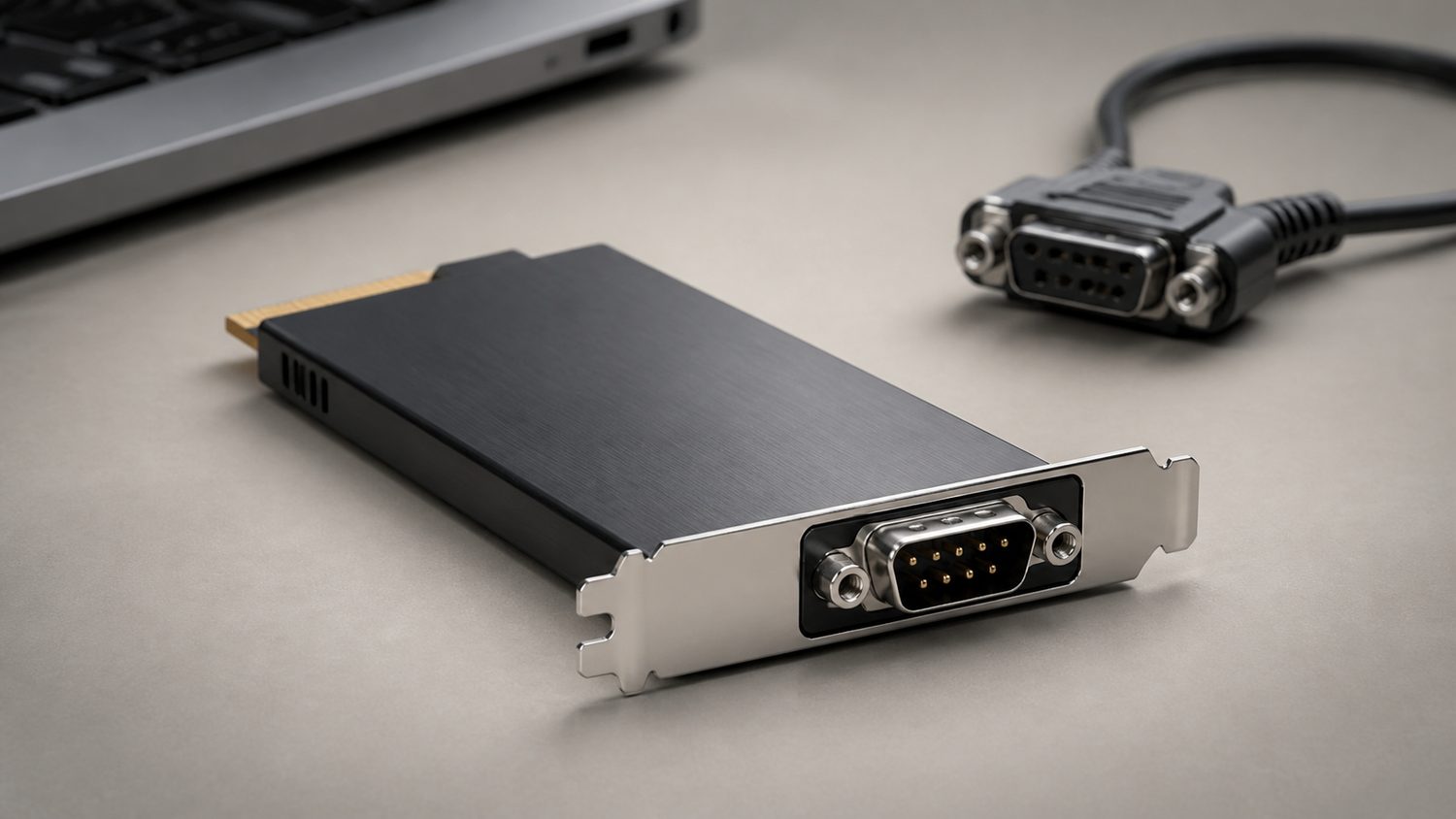
An ExpressCard/34 RS-232 adapter is an old but still practical answer for a laptop that must communicate with a serial device such as industrial equipment, a console port, a receipt printer or a measurement instrument. The phrase “best driver” can be misleading: the correct driver follows the exact adapter chipset and the operating system, not the shape of the DB-9 connector. An incorrect driver may install without an obvious error and still create an unreliable or unusable COM port.
Confirm the hardware before downloading anything
ExpressCard/34 identifies the card form factor. It does not identify the UART, bridge controller or manufacturer. Check the label on the adapter, its packaging, Device Manager hardware IDs and the vendor support page. A genuine product page for StarTech’s EC1S952, for example, identifies a native ExpressCard RS-232 adapter using a PLX/Oxford OXPCIe952 controller and documents the supported operating systems. That model is discontinued, which makes exact identification even more important when buying used hardware or retrieving archived support files.
Do not install a driver simply because a marketplace listing calls an adapter “ExpressCard 34mm serial.” Many no-name listings reuse images and descriptions across cards built with different controllers. The adapter must match the download, and the download must match the edition and architecture of Windows or Linux you use.
Use Device Manager as the first diagnostic
With the card inserted, open Device Manager and look under Ports (COM and LPT), Other devices, or Universal Serial Bus controllers. A working installation normally exposes a COM-port entry. If it appears as an unknown device, open Properties, then Details, and select Hardware Ids. Save the vendor and device identifiers before making changes. They are more reliable than a printed brand name and make it possible to find a vendor’s correct support page.
A yellow warning icon means Windows has not started the device correctly; it does not automatically prove the driver package is missing. Record the error code, remove only the related stale driver if necessary, reboot, and install the package supplied for that exact model. Avoid driver-updater utilities: they often substitute a generic package and offer little evidence that its chipset match is real.
Match the port settings to the equipment
Driver installation creates the interface; the serial device still needs the correct communications settings. Typical controls are COM-port number, baud rate, data bits, parity, stop bits and flow control. A terminal that opens but displays unreadable characters usually points to a settings mismatch rather than a failed driver. Consult the manual for the instrument, controller or console device and enter its stated values exactly. RS-232 cabling can also differ: some equipment needs a straight-through cable while other equipment needs a null-modem crossover.
Check COM-port assignment and conflicts
Legacy software may only search low-numbered COM ports. In Device Manager, open the port’s advanced settings and assign an unused number within the range the program accepts. Do not take a number already used by a physical port, Bluetooth service or virtual machine. After changing it, close and reopen the application so it reads the new assignment. If the adapter disappears after sleep or hot-plugging, reseat it and check whether the laptop’s ExpressCard slot remains enabled in firmware and power-management settings.
Modern operating-system considerations
Windows 10 and Windows 11 may install a driver automatically, but an automatic installation should still be checked against the manufacturer’s supported list. Some older adapters were designed for earlier Windows releases; a vendor page that lists only legacy systems is a signal to test carefully before relying on the card in production. On Linux, identify the device with the system’s PCI and serial-port tools, then confirm the expected tty device and permissions. Do not run unverified shell commands copied from a forum as a substitute for the vendor documentation.
Prove the connection with a controlled test
Test the adapter before connecting it to expensive or safety-critical equipment. A basic loopback test connects the transmit and receive pins on the correct DB-9 pins, then checks whether text sent by a terminal returns to the same terminal. The StarTech documentation for the EC1S952 links to a serial loopback procedure. A successful loopback confirms that the adapter, driver and selected COM port can send and receive; it does not prove that the final cable or device settings are correct.
For the final connection, change one variable at a time: cable, port settings, software and device. Keep a note of the known-good settings. This method is slower than repeatedly reinstalling drivers, but it prevents a real cable or protocol issue from being misdiagnosed as a Windows problem.
When replacement is the sensible answer
If the manufacturer marks the exact card discontinued, provides no supported driver for your operating system, or the device repeatedly disconnects during a loopback test, replacement may be safer than forcing an old package to work. Verify that the laptop still has an ExpressCard slot; many newer machines do not. In that case, assess a current interface that the target equipment and operating system explicitly support. The safest purchase decision starts with the device’s protocol and cable requirement, then works back to a documented adapter—not the other way around.