

As an Amazon Associate and eBay Partner, toptenpick.com earns from qualifying purchases. Prices and availability are subject to change.
A GTX 1660 is a capable 1080p card and it is not a 1440p card, and buying a monitor that ignores that is the most common way to end up disappointed with both.
The arithmetic is straightforward. Moving from 1920×1080 to 2560×1440 is roughly 1.8 times as many pixels to draw every frame. A card comfortably producing 100 frames per second at 1080p in a given game will produce somewhere near 55 to 60 at 1440p — which is playable, and it is not what you bought a high-refresh monitor for. At 4K the count is four times 1080p and the 1660 is not the card for it in modern titles.
So the monitor that suits this card is 1920×1080, at a high refresh rate — and that second half is where the money should go, because it is where a 1660 has headroom. In esports and older titles the card produces well over 60 frames per second at 1080p, and a 60 Hz monitor throws all of that away. A 144 Hz panel is the single upgrade that makes the card feel faster without changing the card.
Adaptive sync is the other thing worth insisting on. FreeSync and G-Sync Compatible monitors match the display’s refresh rate to the frame rate the card is actually producing, which eliminates the tearing you get without it and the input lag you get from V-Sync. The 1660 supports this over DisplayPort, and a surprising number of budget monitors support it too — it costs very little to include, so there is no reason to buy one without it.
One size note. At 1080p, a monitor much larger than about 24 inches starts to look coarse because the pixels are spread over more area — the pixel density drops and text edges become visible. 24 inches is the sweet spot for 1080p, and a 27-inch 1080p panel is a common regret.
Ten picks below, monitors and the things around them.
| # | Product | Price | Where to buy |
|---|---|---|---|
| 1 | 24-Inch 1080p 144 Hz IPS Monitor | $130-$250 | Amazon · eBay |
| 2 | 24-Inch 1080p 165 Hz or 180 Hz Monitor | $150-$280 | Amazon · eBay |
| 3 | 27-Inch 1440p 75 Hz Monitor | $180-$320 | Amazon · eBay |
| 4 | 24-Inch 1080p 60 Hz Budget Monitor | $90-$160 | Amazon |
| 5 | Second Monitor for a Dual Setup | $80-$180 | Amazon |
| 6 | DisplayPort 1.4 Cable | $10-$25 | Amazon |
| 7 | Monitor Arm or Adjustable Stand | $30-$120 | Amazon · eBay |
| 8 | Colour Calibration Device | $100-$250 | Amazon |
| 9 | Bias Lighting Strip | $10-$25 | Amazon · eBay |
| 10 | Blower and Microfibre Screen Cleaning Kit | $10-$25 | Amazon |
The picks, in detail
24-Inch 1080p 144 Hz IPS Monitor
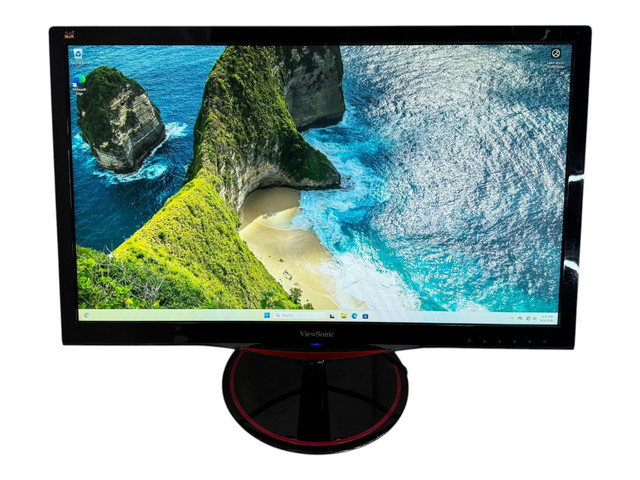
The correct monitor for this card, and where the money should go. 1080p matches what the 1660 renders comfortably, 144 Hz uses the frame rate it produces in competitive titles, and an IPS panel gives you colours and viewing angles that a cheap TN panel does not. Twenty-four inches is the right size at this resolution — the pixel density stays high enough that text is crisp. Insist on FreeSync or G-Sync Compatible and a DisplayPort connection.
- 1920×1080 at 144 Hz
- IPS panel for colour and viewing angles
- FreeSync / G-Sync Compatible
- DisplayPort and HDMI inputs
- Uses the frame rate the 1660 actually produces
- IPS colour is a large step up from TN
- 24 inches keeps pixel density high at 1080p
- IPS has weaker contrast than VA panels
- 144 Hz needs DisplayPort to run at full rate on some models

24-Inch 1080p 165 Hz or 180 Hz Monitor
The higher-refresh option, and the honest assessment is that the difference between 144 and 165 Hz is small — far smaller than the jump from 60 to 144. It is worth taking if the price is similar, and it is not worth paying a premium for on this card, because the 1660 will not consistently feed 165 frames per second in anything demanding. Treat the higher number as a tie-breaker between otherwise equal monitors rather than a reason to spend more.
- 1920×1080 at 165 Hz or above
- IPS or fast VA panels
- Adaptive sync
- DisplayPort required for full refresh
- Marginally smoother than 144 Hz
- Often the same price as 144 Hz models
- Headroom if you upgrade the card later
- A 1660 will not consistently feed 165 fps in demanding games
- Not worth a price premium over 144 Hz here

27-Inch 1440p 75 Hz Monitor
The other direction, and a legitimate choice if what you do is not primarily gaming. At 1440p a 1660 will hold 60 frames per second in plenty of titles at moderate settings, and the extra desktop space and sharper text are genuinely valuable for work, photo editing and anything with a lot of windows open. You are trading frame rate for resolution rather than getting both, and that is a reasonable trade for a machine that works more than it games.
- 2560×1440 at 27 inches
- 75 Hz with adaptive sync
- IPS panel
- Significantly more desktop space
- Much sharper text and more workspace
- The 1660 manages 1440p at moderate settings
- Better for work than any 1080p panel
- Roughly 1.8x the pixels means a large frame rate drop
- Wrong choice if competitive gaming is the priority
24-Inch 1080p 60 Hz Budget Monitor
The honest budget floor, and fine for a specific case: if you mostly work, watch video and play single-player games at 60 frames per second, a good 60 Hz IPS panel at 24 inches is perfectly adequate and costs very little. What you give up is the thing the 1660 is actually good at, which is high frame rates in competitive titles. Buy this if gaming is occasional; spend the extra on 144 Hz if it is not.
- 1920×1080 at 60 Hz
- IPS panel
- Slim bezels and VESA mounting on most
- HDMI and DisplayPort
- Very cheap for a decent IPS panel
- Entirely adequate for work and video
- Low power consumption
- Discards the frame rate headroom the card has
- Noticeably less smooth in fast-moving games
Second Monitor for a Dual Setup
Frequently a better use of money than a single better monitor. A second screen — even a cheap 1080p 60 Hz panel alongside your main gaming monitor — changes how you work far more than a marginally better single display does. The 1660 drives multiple displays without difficulty for desktop use. Match the physical height rather than the specifications: two screens at different heights is uncomfortable, and a monitor arm solves that more cheaply than buying a matched pair.
- Any 1080p panel as a secondary display
- Used for reference, chat or browser
- Driven easily by the 1660 alongside the main screen
- Height matching matters more than matching specs
- Changes daily workflow more than a better single screen
- Cheap, since it need not be a gaming panel
- The card handles it without any performance cost on the desktop
- Desk space, and two power supplies
- Mismatched heights are uncomfortable
DisplayPort 1.4 Cable
The cable that actually delivers what you paid for, and a common reason a new monitor runs at 60 Hz out of the box. Many monitors ship with an HDMI cable only, and depending on the monitor and the HDMI version, high refresh rates at 1080p may not be available over it. DisplayPort is the reliable path on a GTX 1660. Buy a certified cable rather than an unbranded one, and then go into your display settings and select the high refresh rate manually — it is not always automatic.
- DisplayPort 1.4 certified
- Supports high refresh at 1080p and 1440p
- Locking connector on most
- Short lengths are more reliable
- The reliable route to high refresh on this card
- Certified cables avoid intermittent signal dropouts
- Cheap
- Many monitors ship with HDMI only
- Refresh rate still has to be selected manually in settings

Monitor Arm or Adjustable Stand
The upgrade that improves how you actually use the machine. Included stands are usually tilt-only, which means the screen is at whatever height the manufacturer chose — and that is almost never the right one, because the top of the screen should be roughly at eye level. An arm gives you height, depth and rotation, frees the desk underneath, and makes a dual setup align properly. Check your monitor has VESA mounting holes and note the pattern before ordering.
- VESA 75×75 or 100×100 mounting
- Height, depth, tilt and rotation adjustment
- Clamp or grommet desk mounting
- Single and dual arm versions
- Gets the screen to the correct height for your neck
- Frees the desk space the stand occupied
- Aligns a dual setup properly
- Check for VESA holes — some budget monitors lack them
- Gas-spring arms need setting for the monitor’s weight
Colour Calibration Device
For anyone doing photo or video work, and pointless for pure gaming — which is the honest split. Monitors leave the factory with approximate colour, and ‘approximate’ means an image that looks right on your screen may look wrong everywhere else. A hardware colorimeter measures the actual output and builds a correction profile. Even a budget device makes a visible difference on an IPS panel. If you only game, spend the money on the monitor instead.
- Hardware colorimeter
- Builds an ICC profile for your display
- Software walks through the process
- Works across multiple monitors
- Makes colour consistent with other devices and print
- Noticeable even on budget IPS panels
- One device calibrates every screen you own
- No benefit at all for gaming
- Costs as much as a budget monitor

Bias Lighting Strip
A cheap addition with a real effect. A light strip behind the monitor illuminating the wall reduces the contrast between a bright screen and a dark room, which is what causes eye strain during long evening sessions. It also makes the screen’s own blacks look deeper by giving your eye a reference point. Choose a neutral white around 6500 K to match the monitor’s white point — coloured lighting looks dramatic and shifts how you perceive the screen’s colours.
- USB-powered LED strip
- Adhesive backing for the monitor rear
- Neutral 6500 K white
- Cut to length
- Meaningfully reduces evening eye strain
- Makes blacks look deeper by contrast
- Costs very little and runs from the monitor’s USB
- Coloured lighting shifts colour perception
- Adhesive fails on some monitor finishes
Blower and Microfibre Screen Cleaning Kit
Small, and it prevents damage people cause themselves. Matte monitor coatings are soft and easily marked, and cleaning one with a paper towel or a household glass cleaner permanently damages the anti-glare layer — a mistake that is not reversible. A blower for dust, a dry microfibre cloth for marks, and a screen-safe solution for anything stubborn is the whole routine. Never spray liquid directly onto the panel; spray the cloth.
- Air blower for loose dust
- Lint-free microfibre cloths
- Alcohol-free screen-safe solution
- Small kit
- Prevents permanent damage to matte coatings
- Blower removes dust without contact at all
- Cheap
- Household glass cleaner permanently damages coatings
- Never spray liquid directly at the screen
Buying tips
- Buy 1080p, and spend the money on refresh rate. A GTX 1660 is comfortable at 1920×1080 and stretched at 1440p, which is roughly 1.8 times the pixels. A 144 Hz 1080p panel uses the frame rate headroom the card genuinely has; a 1440p panel spends it on resolution instead and leaves you at around 60 frames per second.
- Twenty-four inches is the right size at 1080p. Spreading the same pixels over a 27-inch panel drops the pixel density noticeably — text edges become visible and the image looks coarse at normal viewing distance. A 27-inch 1080p monitor is one of the more common purchase regrets in this bracket.
- Insist on FreeSync or G-Sync Compatible. Matching the display’s refresh to the frame rate the card is producing removes tearing without the input lag V-Sync adds, and the GTX 1660 supports it over DisplayPort. It costs manufacturers very little to include, so there is no reason to buy a monitor without it.
- Use DisplayPort, not the bundled HDMI cable. Many monitors ship with HDMI only, and depending on versions the high refresh rate may not be available over it. A certified DisplayPort cable is a few dollars and it is the reliable path on this card. It is the most common reason a new 144 Hz monitor appears to run at 60.
- Set the refresh rate manually after plugging it in. Windows frequently defaults a new 144 Hz monitor to 60 Hz and gives no indication that it has. Go into display settings, find the advanced display options, and select the highest available rate. A surprising number of people run a high-refresh monitor at 60 for months.
- Turn on adaptive sync in the driver, too. Buying a compatible monitor is half of it — the feature also has to be enabled in the graphics driver control panel, and it is frequently off by default for monitors not officially certified. Check it after setting the refresh rate, while you are in there anyway.
- Consider a second cheap monitor instead of a better single one. A second screen changes daily workflow far more than a marginal panel upgrade does, and the 1660 drives multiple displays without any difficulty on the desktop. Match the physical height of the two screens — a monitor arm does that more cheaply than buying a matched pair.
- Never clean the screen with glass cleaner or paper towel. Matte anti-glare coatings are soft, and household cleaners and abrasive paper damage them permanently. A blower for dust, a dry microfibre cloth for marks, and a screen-safe solution sprayed onto the cloth rather than the panel is the entire correct routine.
As an Amazon Associate and eBay Partner, toptenpick.com earns from qualifying purchases. Prices and availability are subject to change.